
Fake CAPTCHA Attacks: How TerminalFix Turns Verification into Intrusion
If a CAPTCHA asks you to open PowerShell or Windows Terminal, stop. A legitimate human-verification check does not need you to paste and run commands on your computer.
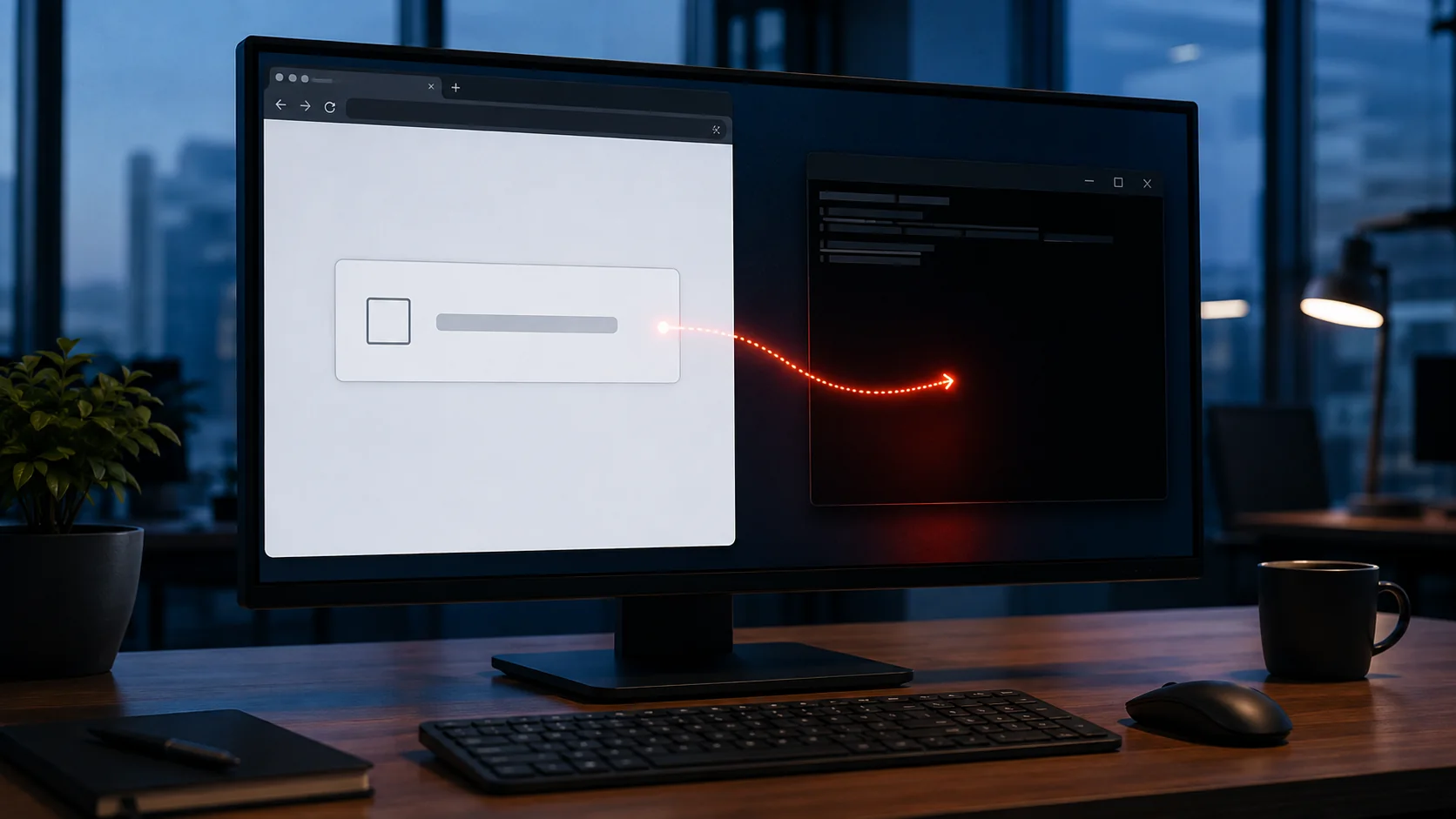
That simple rule matters because attackers are turning familiar verification screens into social-engineering traps. The page may look routine, but the “verification” step transfers execution from the browser to a trusted Windows tool—and asks the victim to launch the attack personally.
On August 28, 2026, Microsoft Security Research detailed an active campaign it calls TerminalFix. The campaign used compromised websites and fake Cloudflare Turnstile-style overlays to persuade visitors to paste malicious commands into Windows Terminal or PowerShell. Microsoft observed a multistage intrusion that established persistence, surveyed Active Directory, and created a reverse tunnel through the compromised device.
For a small or mid-sized business, this is not merely a browser problem. A single affected workstation can become a potential route into the wider network.
What Microsoft observed in the TerminalFix campaign
TerminalFix is a variant of the broader ClickFix technique. In many ClickFix attacks, a false error or verification message tells the victim to open the Windows Run dialog and paste a command. TerminalFix shifts that instruction to Windows Terminal or PowerShell, where more complex, multiline scripts can run.
According to Microsoft's TerminalFix analysis, the observed attack chain worked broadly like this:
- A visitor reached a compromised website displaying a convincing fake verification overlay.
- Interacting with the prompt silently placed a malicious PowerShell command on the clipboard.
- On-screen instructions told the visitor to open Terminal or PowerShell, paste the command, and run it.
- The command downloaded an archive and launched a legitimate signed Windows binary alongside a malicious DLL.
- The malware retrieved additional payloads concealed inside image files, established persistence, and collected information about the device and its domain.
- A Python-based implant created an encrypted reverse tunnel, allowing attacker-controlled traffic to pass through the victim's connection toward systems the device could reach.
The chain combined social engineering with DLL sideloading, hidden payloads, registry and scheduled-task persistence, domain reconnaissance, and network tunneling. Each stage made the initial user action more consequential.
Microsoft says the reverse tunnel and reconnaissance could support access to additional systems. It also states that it did not observe those downstream actions in the attack chain it analyzed. That distinction is important: the capability and risk were present, but the report does not claim that every possible follow-on action occurred.
Why the fake CAPTCHA is convincing
The technique borrows trust from three familiar things.
First, people regularly see “Verify you are human” prompts, so the page does not initially feel unusual. Second, the instructions present the command as a troubleshooting or verification step rather than software execution. Third, PowerShell and Windows Terminal are legitimate tools already present on the system.
The attacker does not need to defeat the CAPTCHA. The attacker needs the user to accept a false explanation and cross a critical boundary: copying instructions from an untrusted website into a command interpreter.
That is why conventional advice about suspicious links is not enough. The compromised website may previously have been legitimate, and the malicious action happens after the page loads.
What employees should do when a website asks for a command
Use one clear rule across the organization:
Never paste a command from a website into PowerShell, Windows Terminal, Command Prompt, the Run dialog, or another scripting tool to complete a CAPTCHA or fix a browser problem.
If an employee sees such a prompt but has not run anything, they should:
- stop interacting with the page;
- record the website address or take a screenshot if company procedure allows;
- close the tab;
- report the event to IT or the security contact; and
- avoid revisiting the site until it has been reviewed.
If the employee copied a command but did not execute it, they should still report the event. The clipboard action and website details can help defenders identify other exposure.
If the command was executed, treat the device as potentially compromised. The employee should stop using it and contact IT immediately. The response team should isolate the endpoint using its established network or endpoint-security process, preserve relevant evidence, and avoid uncoordinated cleanup that could erase useful artifacts.
Controls that reduce the chance of execution
Train around the action, not just the appearance
Attackers can change logos, wording, colors, and page layouts quickly. Awareness training should focus on the requested behavior: a website asking someone to open a local system tool and paste a command is the warning sign.
Give employees a reporting path that is faster than trying to decide whether the page is genuine. Short screenshots and examples can help, but the durable lesson is to refuse the command.
Restrict scripting tools where they are not needed
Microsoft recommends using controls such as AppLocker, Application Control for Windows, or Group Policy to restrict PowerShell for standard users where operationally appropriate. It also suggests considering restrictions or auditing for the Run dialog and configuring Windows Terminal to warn when pasted text contains multiple lines.
Apply these controls by role. Administrators and developers may need scripting access, while many other employees do not. Test changes before broad deployment so a security control does not interrupt legitimate business processes.
Execution policy alone should not be treated as a complete security boundary. Combine application control, least privilege, endpoint protection, logging, and user awareness.
Improve browser and web protection
Keep browsers managed and updated. Use web and network protection capable of blocking newly identified malicious or compromised destinations, and enable cloud-delivered endpoint protection where supported.
Email security still matters because messages, ads, and search results may lead users to compromised pages. The final lure appears in the browser, but the journey may begin elsewhere.
What defenders should monitor
Microsoft's report provides detailed indicators and Defender hunting guidance. Organizations using other tools can translate the same behaviours into their own endpoint, SIEM, and network detections.
Useful signals include:
- PowerShell launching command interpreters, batch files, or downloads shortly after browser activity;
- a signed Windows binary loading an unexpected DLL from a non-standard directory;
- new or unusual registry Run entries and scheduled tasks;
- PowerShell script blocks containing obfuscated or encoded content;
- Python or
pythonw.exelaunching an unfamiliar tunneling script; - unexpected domain-enumeration commands or searches from a user workstation; and
- outbound encrypted connections associated with proxying or tunneling behavior.
Enable PowerShell script-block logging where appropriate and send endpoint, identity, DNS, proxy, and network telemetry to a separate system with useful retention. Local-only logs may be altered or lost during an intrusion.
Use the current Microsoft report for its published hashes, domains, detection names, and hunting queries rather than copying a static list into a long-lived internal document without an update process.
How to respond if the command ran
An affected endpoint should be investigated as a possible network pivot point, not handled only by deleting the downloaded files.
A practical response includes:
- Isolate the device through the approved endpoint or network process.
- Preserve volatile and stored evidence before destructive remediation.
- Identify the user, time of execution, website, pasted command, downloads, processes, persistence mechanisms, and outbound connections.
- Hunt for the same indicators and behaviours across other endpoints.
- Review identity activity and determine which credentials were accessible from the device.
- Scope access to domain controllers, servers, backups, databases, email systems, and other reachable assets.
- Rotate exposed credentials based on evidence and risk, prioritizing privileged accounts.
- Rebuild or remediate the endpoint according to the confirmed scope, then validate that persistence and attacker access are gone.
Microsoft advises organizations that find campaign indicators to assume the attacker had network-level access through the host and to investigate lateral movement and credential exposure. That assumption should drive the scope of the response until evidence supports a narrower conclusion.
Make the warning easy to remember
Fake CAPTCHA attacks succeed because they turn a familiar security ritual into an instruction to bypass security. The most useful employee message is also the simplest:
A CAPTCHA happens in the browser. It never needs you to open a terminal and run a command.
Outfaze helps organizations strengthen endpoint security, improve security awareness, and investigate suspected compromise. The objective is to stop a deceptive prompt from becoming persistent access to the business network.